Opening XRechnung and reading ZUGFeRD: a practical invoice review guide
An XML file is not yet a readable invoice view. Make structured invoices understandable, investigate errors and prepare a controlled accounting handover.
Quick answer
Open an XRechnung with an application that renders its XML invoice data in a readable form. A ZUGFeRD invoice combines a PDF view with embedded XML data. Review the format, invoice content and underlying transaction separately, and retain the file originally received.
Key takeaways
- Visualization, technical validation and business approval answer different questions.
- A generated PDF view does not replace the structured original invoice.
- accuno supports structured incoming invoices while keeping review and posting decisions visible.
Identify the file: XML or a PDF with embedded invoice data?
You receive an invoice by email, open the attachment and see technical field names. With XRechnung, that does not necessarily indicate an error. The invoice contains structured XML data. An application can turn that data into a readable view showing the supplier, invoice number, line items and totals. Opening the file in a text editor is usually inconvenient for everyday invoice review.
ZUGFeRD combines a PDF representation with embedded XML invoice data. A conventional PDF reader mainly displays the visible page. That view alone does not establish whether the embedded data is complete or consistent. An ordinary PDF is not automatically a ZUGFeRD invoice either. Identify the actual format before treating an unexpected view as a damaged document.
Sources and further information
Open an XRechnung in five steps
First save the attachment exactly as received. In your invoice application, select the import or display function for structured invoices and open that file. If you only see raw text, you may be using an XML text view instead of an invoice visualization. Renaming an .xml extension to .pdf does not convert the format.
For individual files, the German tax administration provides the ELSTER e-invoice viewer. Open the linked page below and select your invoice using its file selection field. It displays the invoice in readable form. The tax administration describes it as a non-binding service; displaying a document does not constitute tax approval.
KoSIT provides XRechnung visualization components for HTML or PDF rendering. These are primarily technical references for software developers and IT staff. For an office workflow, the practical question is whether the application supports the incoming syntax and version and displays all information needed for review.
- Save the original and associate its sender with the expected supplier.
- Open the file in an appropriate invoice view.
- Read the number, date, parties, line items and totals.
- Check supporting documents and payment details separately.
- Keep the view connected to the original throughout review.
Sources and further information
Readable does not mean validated
A viewer answers what the file says. A validator checks whether the data follows the technical rules being tested. Those rules can cover data structures, required fields and arithmetic relationships. KoSIT separates its validator from the XRechnung validation configuration. A generic XML check without the appropriate rules therefore does not constitute a complete XRechnung validation.
When a check fails, record the configuration, the relevant file and the report. Read the individual issue: is information missing, are totals inconsistent, or does the application lack support for the format? Ask the issuer for a corrected invoice where appropriate. Do not silently change the received data just to make a check pass.
The German Ministry of Finance describes validation as useful support rather than an immediate prerequisite for tax recognition. A technical result alone therefore determines neither input VAT deductibility nor whether a payment is justified.
With ZUGFeRD, inspect the structured content as well
Suppose the PDF view shows EUR 1,190 but the imported data produces a different amount payable. Do not approve solely because the PDF looks familiar. Compare line items, allowances, taxes and payments already taken into account. Establish whether the problem lies in visualization, data import or a contradiction within the supplied invoice.
An e-invoice must contain the required tax information in its structured part. A reference to a supplementary PDF is not a general substitute for that information. Ask the issuer to clarify or correct contradictory content. Retain the relationship between a revised invoice and the document originally received instead of leaving two unexplained versions in circulation.
Sources and further information
Review the actual transaction after the format
A technically plausible invoice can still concern an unordered service, the wrong quantity or changed bank details. Check the order, delivery or performance, agreed price and payment terms. Compare critical changes with previously confirmed supplier information and investigate discrepancies through an established contact channel.
Accounting requires additional decisions. Which period is affected? Which account applies? Does the invoice concern a partial payment, or has it already been captured? Who reviews an unclear tax treatment? A short checklist with an accountable reviewer and unresolved questions prevents successful extraction from being mistaken for posting approval. Agree the division of work with your team and tax advisor.
Sources and further information
Keep the original, review evidence and decision connected
A printout or a generated PDF view can help people read the invoice, but it does not replace the structured original. Retain the received file, supporting documents and review evidence needed for your workflow in a way that keeps the transaction traceable. Make the relationships between different versions explicit.
Test the eventual export as well. Can you locate and download the original again? Is it still associated with the posting? Does the handover include the documents agreed with your advisor? Follow a completed transaction through these steps. A working invoice view at intake is only one part of a usable accounting process.
Sources and further information
Continuing the incoming invoice workflow in accuno
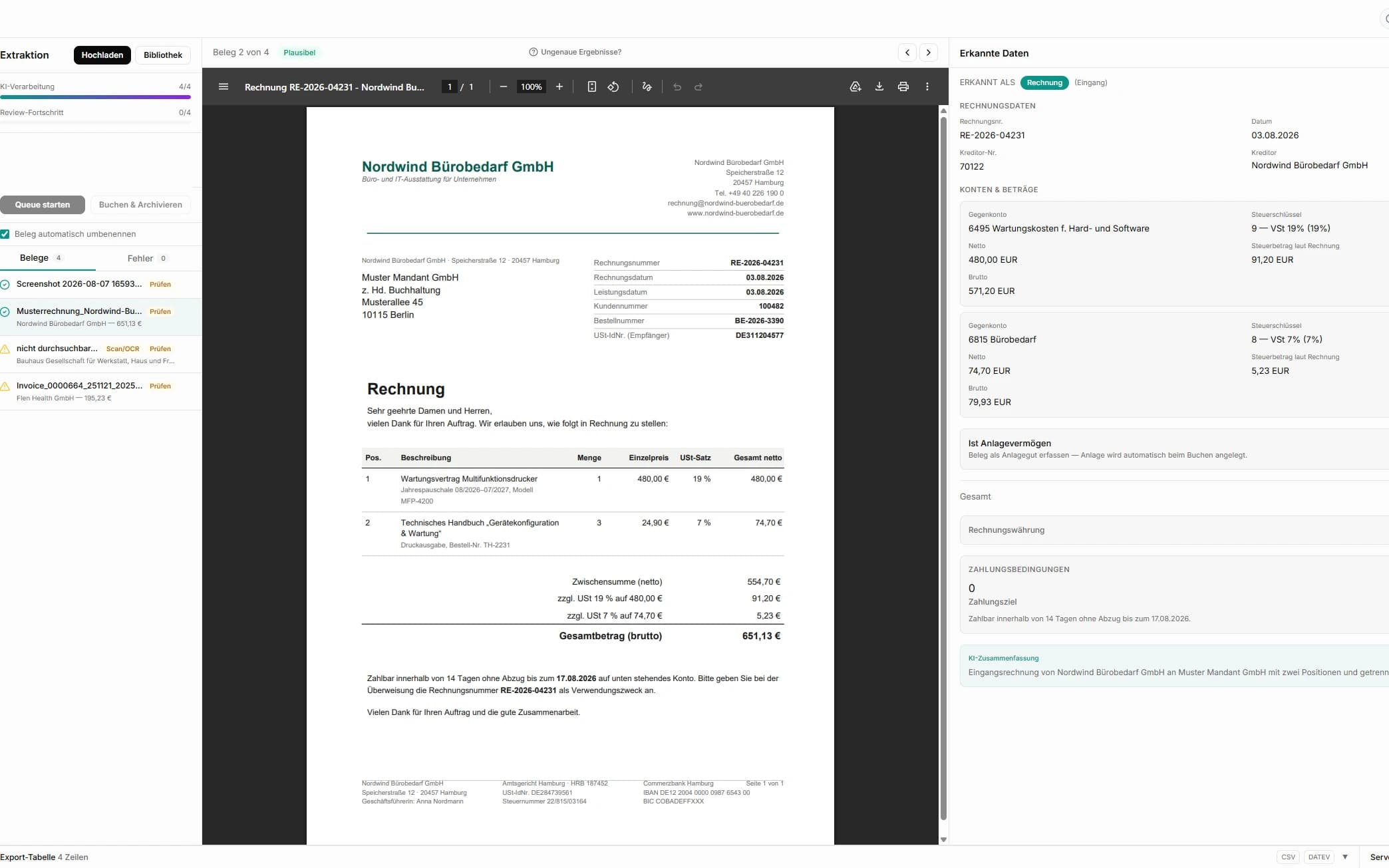
accuno reads incoming XRechnung invoices in UBL or CII syntax, as well as ZUGFeRD/Factur-X files containing embedded invoice XML. The imported values are then available for document review and further processing. Compare the business partner, amounts, tax details and proposed accounting context with the original.
Structured import does not by itself provide an independent KoSIT validation report. If your workflow requires such evidence, include a documented validation step. Start with a few representative incoming invoices: a regular supplier invoice, an invoice containing an allowance and an intentionally invalid test file. Assess whether your team can identify the differences and take every case through to a traceable posting or a clearly assigned question.
Related workflows in accuno
These product pages show how accuno supports the workflows described in this guide.
Sources and further information
- German Ministry of Finance: e-invoicing FAQ, March 2026
- ELSTER: view an e-invoice
- KoSIT: XRechnung visualization
- KoSIT: XML Schema and Schematron validator
- KoSIT: XRechnung validation configuration
- Section 14 UStG: invoice information and e-invoices
- Section 239 HGB: traceable accounting records
- Section 147 AO: retention and access to data
Editorial note
Prepared by the accuno Editorial Team and reviewed against the listed primary sources and the implemented product scope.
These articles provide general guidance and do not replace legal, tax, or business advice. Confirm your specific situation with a qualified professional.